Getting Started
This page takes you from a fresh project to your first carve. It’s shorter than you’d think.
What You Need
- Unity 2022.3 LTS or newer.
- Any render pipeline (Built-in, URP, HDRP).
- A couple of meshes with Read/Write Enabled (Poseidon’s inspector will warn you and offer a Fix button if a mesh isn’t).
Installing
Import the Poseidon package into your project. Everything lands under Assets/Poseidon, including an Examples folder with sample scenes. That’s it, there’s no setup wizard and nothing runs until you add your first Poseidon component.
The Fastest First Carve: Example Scenes
Open Examples/Scenes/1. Intersecting Cubes and move the objects around in the Scene view. You’ll see the meshes carve into each other as they intersect. 2. Rooms and Tunnels shows the workflow Poseidon was really built for: connecting interior spaces together by pushing rooms and tunnels into each other.
Your First Carve From Scratch
- Get a mesh that represents an interior space: a room or tunnel with its faces pointing inward, closed on the bottom. (This is the one rule of Poseidon: carvers describe empty space. If you only have an outward-facing mesh handy, the Flip All Faces option in the Advanced tab can flip it for you.)
- Add the Poseidon component to the GameObject with the MeshFilter. Our recommendation is to add Poseidons in Prefab mode if you’re going to prefab the object later, since it keeps things cleaner.
- Duplicate the object (or add a second Poseidon to another interior mesh).
- Move them so they intersect, and watch the magic happen: the shared walls dissolve and the two spaces connect.
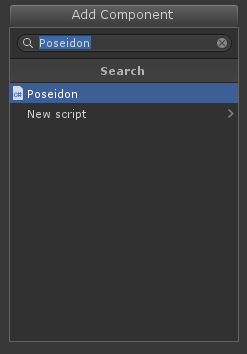 Click and add. It’s that easy.
If nothing seems to happen, check three things: both objects have Poseidon components, both meshes are Read/Write Enabled, and Poseidon isn’t turned off in the scene view toolbar (the trident icon; see below).
Meet the Toolbar
Poseidon ships with a Poseidon Tools overlay in the Scene view. The most important button is the trident: it toggles whether Poseidon automatically carves at all. When you’re repositioning a lot of objects, turn it off, arrange everything, then turn it back on and let Poseidon catch up in one pass.
The full tour of the toolbar, Deferred Mode, and the preferences window lives in Editor Workflow.
Where to Go Next
- Importing from Your Modeler: the recommended way to author Poseidons, straight from Blender/Modo/Maya with a naming convention.
- Editor Workflow: the toolbar, Deferred Mode, preferences, and inspector tips for working in bigger scenes.
- UVs & Materials: eliminating texture seams where meshes meet.
- Advanced Features: Inward/Outward facing, Layers, and the rest of the power tools.