Importing from Your Modeler
The recommended way of working with Poseidon is to use the Poseidon Auto ModelImporter. Simply create a Mesh in your 3D modeler of choice, and if a portion of it is to be the Poseidon carver, place an empty object ending with _POSEIDON inside it. Our importer will convert it automatically!
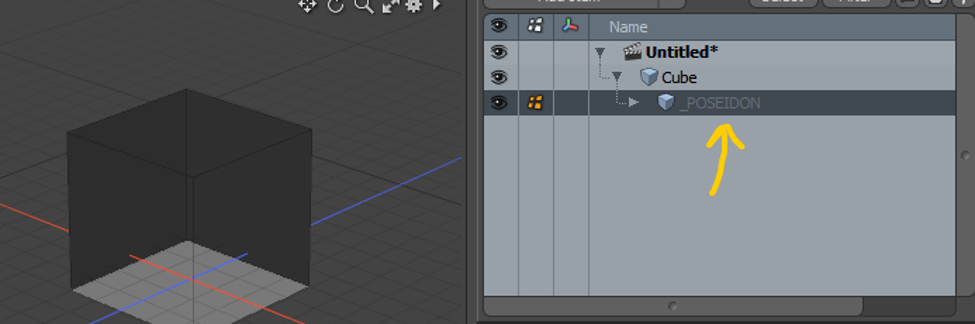
If your mesh has an empty child ending with _POSEIDON, it will automatically be imported as a Poseidon in the Mesh Prefab generated by Unity. Use _POSEIDON_OUT instead if the object should be imported as an Outward-facing Poseidon (a filled object, like a rock or terrain piece; see Advanced Features for what facing means).
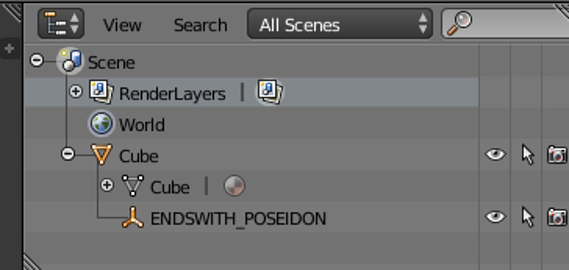
In general, we recommend using the auto-importer for almost everything when making new Poseidons. It’s much easier to manage models in your own 3D modeler than to maintain separate carve meshes inside Unity. Model it, name the locator, save, and the prefab Unity generates is carve-ready.
Enabling and Disabling the Importer
The importer is on by default and is a per-project setting (so the whole team gets the same import results). You’ll find it in the Poseidon settings as Use Custom Model Importer, along with a configurable list of placeholder names (“Mesh”, “Carver”, “Poseidon”, …) that Poseidon will replace with the prefab’s name in logs, which keeps logging readable when every carver in your project is technically named “Mesh”.
How Change Detection Works (and Its Limits)
Our algorithm detects if you’ve updated a mesh in the modeler and saved over the old mesh*.
* Kind of. We just look at the number of vertices and submeshes. If you take a Poseidon mesh and just move a vert, we won’t recognize it as changed and requiring a recompute. In that case, nudge the object or use Rebuild Poseidon from the inspector’s context menu to force it. A more robust solution (something like a mesh hash) is on our roadmap.