UVs & Materials
When you’re dealing with properly textured objects, and pushing them together, it is really easy for seams to occur. As can be seen in the example below, the wallpaper and the marble floor produce ugly seams when pushed together.
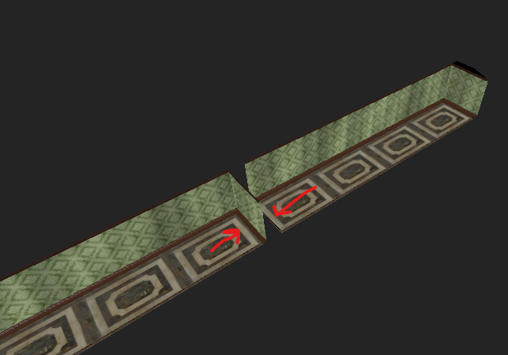
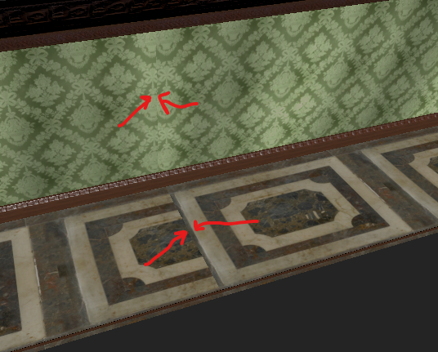
If your goal is to eliminate generated seams, one possible solution is to use our UV remapper that can be found on the Poseidon inspector.
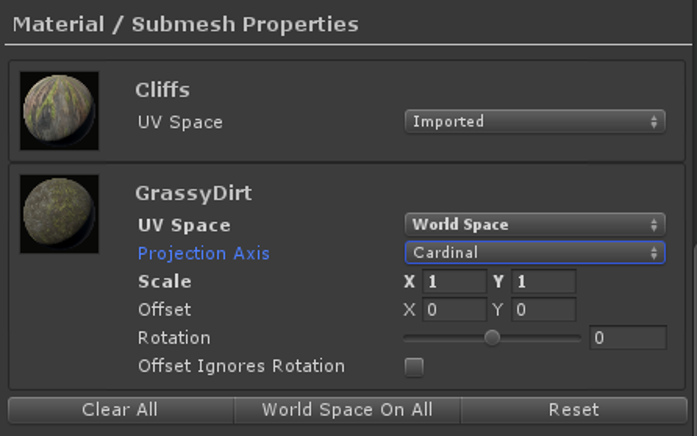
The Material / Submesh Properties generates UV overrides for each material/submesh in your mesh. When recomputing Poseidons, each submesh can use one of three UV strategies:
- Imported: the UVs you created in your modeler, untouched. The default.
- World Space: remap the submesh’s UVs with a basic projection based on where the surface sits in the world.
- Local Space (Object Space): the same projection idea, but computed in the object’s own coordinate space instead of the world’s.
World Space UVs
World Space UVs let us tile based on where something is in the world, not based on how it was UV mapped in the modeler. It’s nothing too fancy, but it means two floors that meet at the same height automatically line up, because they’re both sampling the same world-space grid.
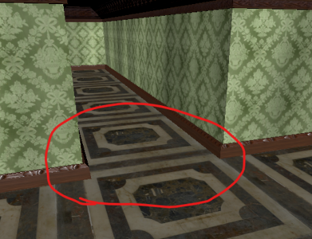
In the image above, the floor tiles were remapped with World Space UVs, so that no seam occurs when these two rooms are connected together.
Because we’ve found using World Space UVs so useful, we’ve adopted the habit of almost always using it for ground textures and sometimes for walls, depending on the complexity of the model. This means that even if the floors/walls/roof of a room all use the same material, sometimes we may want to explicitly place them on separate submeshes in order to get custom tiling on the generated World Space UVs.
Object Space UVs
Local Space (added in 2.0 as “Object Space UV Triplanar Rewrapping”) does the same projection as World Space, but anchored to the object instead of the world. The practical difference: with World Space UVs, the texture stays put in the world and the object slides “through” it as you move the object; with Local Space UVs, the texture travels with the object.
Use Local Space when you want the seamless-projection look but the texture needs to stick to the object: props that get moved around at runtime, or modular pieces that should look identical no matter where they’re placed. One note from the engine room: Local Space adds an extra matrix calculation per triangle, so it’s a bit slower to carve than the other two strategies.
Projection Axis
Projected UVs (World or Local Space) can project across Cardinal axes, which picks the best of the three axes per surface (this is the “triplanar” part), or be locked to a specific X, Y, or Z axis if you want full control over the direction the texture is applied from.
Scale, Offset, and Rotation
The Scale property allows you to scale a projected texture, to make it larger or smaller on the UVs. Rotation rotates generated UVs by a certain amount in degrees, and Offset allows you to shift the UVs by a certain amount in order to get things to line up right. Offset Ignores Rotation is just a property that allows you to shift the UVs before doing rotation. Otherwise, rotation is calculated first by default.
Honestly, in many years of using Poseidon, our team has mostly only ever used the Scale property on these, but we wanted to expose everything, just in case your specific use cases need Offset and Rotation.
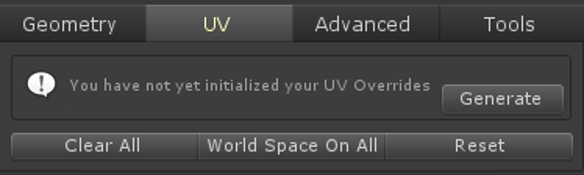
Generating the Overrides
In order to start using these settings, you have to “Generate” the UV Overrides. This is just an annoying artifact of how we need to serialize the UV override data in the object, since meshes can change on us. If there are no overrides, then the system will use Imported UVs.
The buttons on the bottom do simple things. Clear All just clears the Overrides and everything is back to being Imported. World Space On All makes sure all of the UV Space properties are set to World Space. It’s a fancy shortcut for making everything World Space. Reset does the opposite and sets everything to being Imported UVs. This whole thing will probably be cleaned up and simplified in future releases.
UVs and Mesh Cleanup
If you use Mesh Cleanup, its mode choice interacts with your UVs: Safe never touches them, Balanced protects seams but may smooth UV interiors, and Aggressive assumes UVs are disposable, which is a fine assumption when you’re using projected UVs or triplanar materials anyway. See that page for the details.